Set Up OpenClaw With iMessage via BlueBubbles (5-Step Guide)
OpenClaw was previously known as Clawdbot and Moltbot. This guide applies to all versions.
Mac required. Connect OpenClaw to iMessage via BlueBubbles: install the server app, enable the web API, configure OpenClaw, and wire the webhook. Covers all 5 steps.
Key takeaways
- BlueBubbles requires a physical Mac running macOS 12 or later with Messages.app signed into iMessage. There is no Docker image, no cloud workaround. The Mac must stay on.
- Install the
@openclaw/bluebubblesplugin, configure thechannels.bluebubblesblock with your Mac's local IP and BlueBubbles API password, then point BlueBubbles's webhook at your OpenClaw gateway. - Prevent Mac sleep using System Settings > Energy so the BlueBubbles server stays alive around the clock.
- Use
openclaw pairing list bluebubblesandopenclaw pairing approve bluebubbles <CODE>to activate the first DM conversation after the bot receives its first message.
Always review commands your agent suggests before approving them. Don't paste prompts from sources you don't trust.
Fixes when it breaks. Workflows when it doesn't.
OpenClaw guides, configs, and troubleshooting notes. Every two weeks.
Introduction
iMessage is a walled garden, and OpenClaw (previously known as Clawdbot and Moltbot) gets in through a side door called BlueBubbles. BlueBubbles is an open-source server app that runs on your Mac and exposes Apple's Messages database over a REST API. OpenClaw talks to that API to send and receive iMessages, reactions, read receipts, and more.
The catch is in the next section. Read it before you start planning.
This Requires a Mac. Not Optional.
iMessage is Apple-only infrastructure. OpenClaw does not have a workaround for this. BlueBubbles works by running a local server on a macOS machine that already has iMessage configured. That Mac must be powered on and connected to the internet at all times for the integration to function.
A Mac Mini running headlessly in your home or office is the frequent setup. A MacBook works too, as long as it stays awake. Apple Silicon Macs (M1, M2, M3, M4 series) and Intel Macs both work. macOS Sequoia (15) is the recommended version as of this writing. macOS Tahoe (26) works but has known issues with message editing and group icon updates.
There is no cloud workaround. There is no Docker image. There is no "actually you can use a Hackintosh" shortcut that won't get your Apple ID flagged. The Mac is a hard dependency. Budget for a Mac Mini if you don't already have one sitting around.
What You Need Before Starting
- A Mac running macOS Sequoia 15 (or later, with caveats noted below)
- Messages.app signed in with an active Apple ID on that Mac
- BlueBubbles server app installed on that Mac
- OpenClaw installed and running on a server or local machine (see setting up OpenClaw on a DigitalOcean VPS if you need a remote gateway)
- Network access between your OpenClaw gateway and the Mac running BlueBubbles
- A public HTTPS URL for your gateway if you want the BlueBubbles webhook to reach it from outside your local network
If you are new to OpenClaw and want a simpler channel to test with first, the Telegram setup guide requires no Mac and takes under ten minutes.
Step 1: Download and Install the BlueBubbles Server
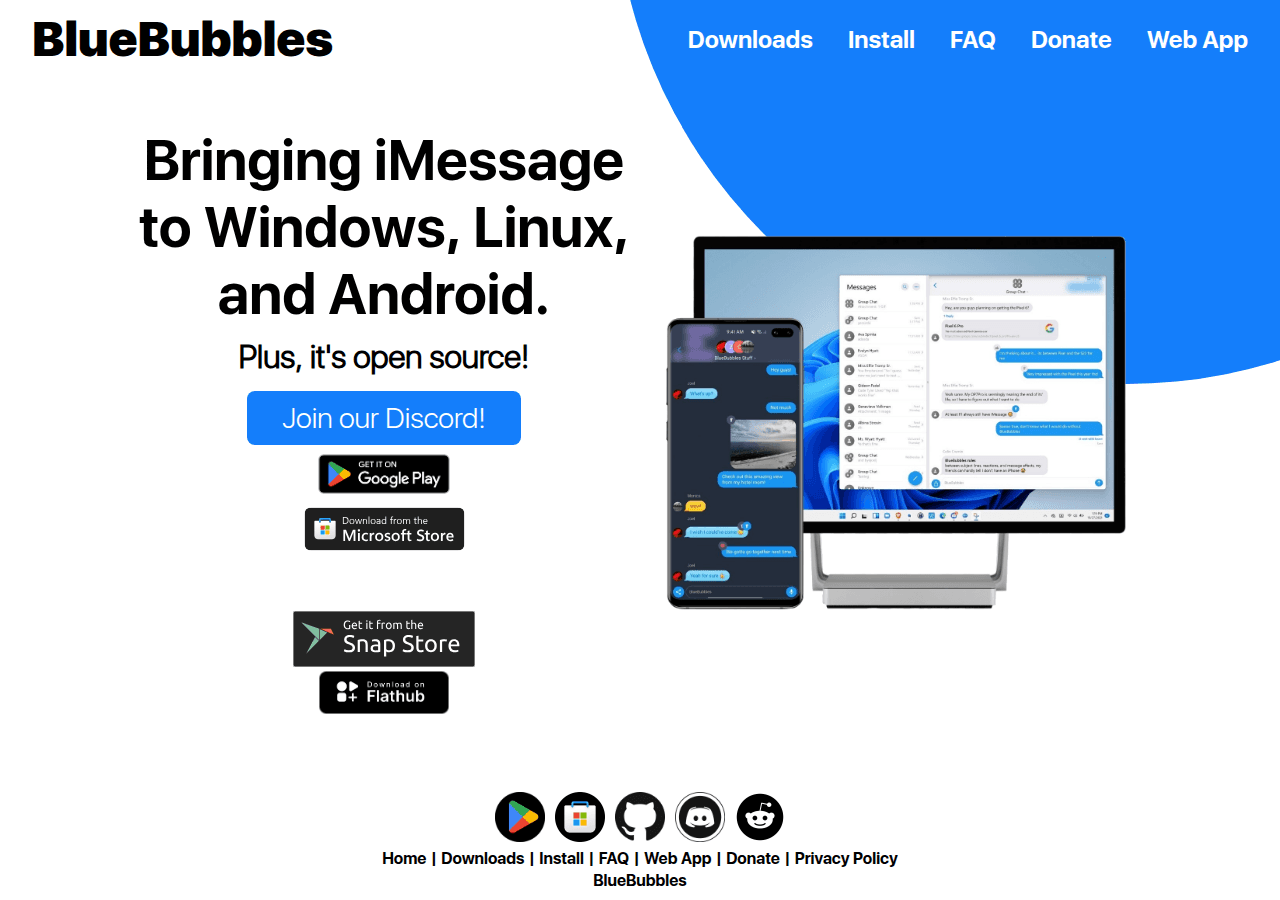
On your Mac, open a browser and go to https://bluebubbles.app/install. Download the latest BlueBubbles server app for macOS and open the downloaded .dmg file. Drag the BlueBubbles app to your Applications folder.
Launch BlueBubbles from Applications. The first time it opens, macOS may ask for permission to run an app from the internet. Click Open.
BlueBubbles will walk you through an initial setup wizard. Follow it through to the end. The key things it configures during setup:
- Verifying that Messages.app is running and signed into iMessage
- Requesting the accessibility and automation permissions it needs
- Starting the local HTTP server
After the wizard completes, BlueBubbles will show a dashboard with a server status indicator.
Step 2: Enable the Web API and Set a Password
Inside the BlueBubbles app, open Settings (the gear icon in the sidebar).
Find the Server section. Enable the web API toggle if it is not already on. BlueBubbles will show you a local server URL in the format http://192.168.x.x:1234. Write this down. You will need it for the OpenClaw config.
Still in Settings, set a server password. This is not optional. The BlueBubbles API has no authentication by default; the password you set here is what prevents unauthorized access to your iMessage account. Make it long and treat it like a real credential.
At this point your BlueBubbles server is running. You can confirm it by opening a browser on the same Mac and visiting http://localhost:1234 (replace 1234 with whatever port BlueBubbles shows). You should see a JSON response from the server.
Step 3: Enable Private API Features (Recommended)
BlueBubbles has a standard mode and a Private API mode. The Private API unlocks reactions (tapbacks), message editing, unsend, message effects, and group management features.
To enable it:
- Open BlueBubbles Settings
- Go to Private API (or Advanced)
- Follow the on-screen instructions to install the required helper bundle
Private API requires allowing BlueBubbles to inject a helper into Messages.app. macOS will prompt for your password. This is a one-time step. Without Private API, you can still send and receive messages, but reactions and edits will not work.
Step 4: Verify the BlueBubbles Plugin
BlueBubbles ships as an extension plugin that's configured inline with the rest of your channels. It's bundled with OpenClaw, so there's no separate install step. You configure it directly in openclaw.json under channels.bluebubbles.
Confirm the plugin is available:
openclaw plugins listYou should see bluebubbles in the output. If it does not appear, you may be on an older OpenClaw version. Update with npm install -g openclaw@latest and restart.
Step 5: Configure OpenClaw

Open your OpenClaw configuration file (~/.openclaw/openclaw.json or wherever your config lives). Add the bluebubbles block under channels:
{
  "channels": {
    "bluebubbles": {
      "enabled": true,
      "serverUrl": "http://192.168.1.100:1234",
      "password": "your-bluebubbles-password-here",
      "webhookPath": "/bluebubbles-webhook",
      "dmPolicy": "pairing",
      "sendReadReceipts": true,
      "actions": {
        "reactions": true,
        "edit": true,
        "unsend": true,
        "reply": true,
        "sendWithEffect": true,
        "renameGroup": true,
        "setGroupIcon": true,
        "addParticipant": true,
        "removeParticipant": true,
        "leaveGroup": true,
        "sendAttachment": true
      }
    }
  }
}
Replace 192.168.1.100:1234 with the actual local IP and port shown in your BlueBubbles settings. Replace the password with the one you set in Step 2.
Config field notes:
serverUrl: The BlueBubbles server address. If OpenClaw runs on a different machine than the Mac, this must be the Mac's LAN IP, not localhost.password: The password you configured in BlueBubbles. Required.webhookPath: The path on your OpenClaw gateway where BlueBubbles will POST incoming events. Keep this at/bluebubbles-webhookunless you have a reason to change it.dmPolicy: Set topairingso OpenClaw asks you to approve new contacts before responding. You can set it toallowlistand add specific phone numbers or email addresses toallowFrominstead.sendReadReceipts: Controls whether iMessage shows "Read" receipts. Set tofalseif you prefer not to send them.
If you are running OpenClaw on macOS Tahoe (26), disable message editing to avoid a known bug:
"actions": {
  "edit": false
}
Step 6: Point the BlueBubbles Webhook at OpenClaw
BlueBubbles sends incoming messages and events to OpenClaw via webhook. You need to tell BlueBubbles where your gateway lives.
In the BlueBubbles app, go to Settings and find the Webhooks or Notification Server section. Add a new webhook URL in this format:
https://your-gateway-domain.com/bluebubbles-webhook?password=your-password-hereIf your OpenClaw gateway is on the same local network as the Mac, you can use the local IP:
http://192.168.1.50:18789/bluebubbles-webhook?password=your-password-hereReplace 192.168.1.50:18789 with your gateway's actual address and port.
If your gateway is on a remote VPS, the BlueBubbles Mac needs to reach it over the internet. Use your public domain name with HTTPS. Self-signed certificates will not work; BlueBubbles requires a valid certificate.
Save the webhook. BlueBubbles will attempt a test ping. If it fails, double-check the URL, port, and that your gateway firewall allows inbound connections on port 18789 (or whatever port you use).
Step 7: Restart the Gateway and Approve Pairing
Restart the OpenClaw gateway to load the new configuration:
openclaw gateway restartNow send a message to your OpenClaw bot from your iMessage account. OpenClaw will receive it, hold it pending pairing approval, and show a pairing code in the logs.
Approve the pairing:
openclaw pairing list bluebubbles
openclaw pairing approve bluebubbles <CODE>
Replace <CODE> with the code shown in the list output. Pairing codes expire after one hour, so run these commands promptly after sending your first message.
Verify It Works
With pairing complete, send a test message from iMessage:
Hello, OpenClaw.You should receive a reply within a few seconds. If OpenClaw is configured with default skills, it will respond like a standard assistant.
To confirm the full pipeline is working, check the gateway logs in a separate terminal:
openclaw logs --followYou should see log lines showing:
- A
bluebubbles: recvevent for your incoming message - A routing decision
- An outbound
bluebubbles: sendevent
If you see bluebubbles: drop dm (policy=pairing), the sender has not been approved yet. Run openclaw pairing list bluebubbles again.
If you see no events at all when you send from iMessage, the webhook is not reaching OpenClaw. Go back to Step 6 and confirm the webhook URL is correct and the gateway port is reachable.
Common Issues
Mac Falling Asleep
This will be your number one problem. Not "might be." Will be. If the Mac sleeps, the BlueBubbles server goes dark and incoming iMessages pile up undelivered. You won't get an error. You'll just notice the bot stopped responding sometime around 2 AM.
Fix this in two places:
System Settings on the Mac: Go to System Settings, then Battery (or Energy Saver on Intel Macs), and set "Prevent Mac from sleeping automatically when the display is off" to On. If you are using a Mac Mini without a display, this is on by default for AC power, but confirm it.
Do not rely on "display sleep" vs "system sleep" being different. On some configurations, display sleep does not keep the server alive. Set system sleep to Never for a headless Mac.
You can verify the Mac is not sleeping by using the pmset command from Terminal:
pmset -gLook for sleep set to 0.
Messages.app Stops Responding
BlueBubbles depends on Messages.app being active. On headless setups (no display, logged in via SSH or Screen Sharing), Messages.app can become unresponsive over time.
The recommended fix is a LaunchAgent that pokes Messages.app every five minutes:
- Create the script at
~/Scripts/poke-messages.scpt:
try
  tell application "Messages"
    if not running then
      launch
    end if
    set _chatCount to (count of chats)
  end tell
on error
  -- Ignore transient failures
end try- Create a LaunchAgent plist at
~/Library/LaunchAgents/com.user.poke-messages.plist:
<?xml version="1.0" encoding="UTF-8"?>
<!DOCTYPE plist PUBLIC "-//Apple//DTD PLIST 1.0//EN"
  "http://www.apple.com/DTDs/PropertyList-1.0.dtd">
<plist version="1.0">
  <dict>
    <key>Label</key>
    <string>com.user.poke-messages</string>
    <key>ProgramArguments</key>
    <array>
      <string>/bin/bash</string>
      <string>-lc</string>
      <string>/usr/bin/osascript "$HOME/Scripts/poke-messages.scpt"</string>
    </array>
    <key>RunAtLoad</key>
    <true/>
    <key>StartInterval</key>
    <integer>300</integer>
    <key>StandardOutPath</key>
    <string>/tmp/poke-messages.log</string>
    <key>StandardErrorPath</key>
    <string>/tmp/poke-messages.err</string>
  </dict>
</plist>- Load it:
launchctl load ~/Library/LaunchAgents/com.user.poke-messages.plistThis keeps Messages.app alive and ensures BlueBubbles can reach it.
macOS Permissions Errors
BlueBubbles needs two macOS permissions to function: Automation (to control Messages.app) and Full Disk Access (to read the Messages database).
If either is missing, you will see errors in the BlueBubbles log about being unable to send or receive messages.
To grant them:
- Open System Settings
- Go to Privacy and Security
- Under Automation, find BlueBubbles and ensure the checkbox next to Messages is enabled
- Under Full Disk Access, add BlueBubbles if it is not listed
After granting permissions, restart BlueBubbles. macOS does not always apply permission changes without a restart of the app.
Webhook Password Rejected
If BlueBubbles logs show "Authentication failed" or "401" when sending to OpenClaw, the password in the webhook URL does not match the password field in your OpenClaw config.
Double-check both: the ?password= query parameter in the BlueBubbles webhook URL, and the "password" field in the OpenClaw channels.bluebubbles config block. They must be identical, character for character.
Gateway Unreachable from the Mac
If the BlueBubbles server cannot reach your OpenClaw gateway, test the connection from the Mac's Terminal:
curl -I http://your-gateway-address:18789/bluebubbles-webhookYou should get a 405 or similar response (not a connection timeout). If it times out, the gateway port is not reachable. Check your firewall rules on the VPS or router.
For a deeper dive on network and configuration issues, the fix-openclaw-bluebubbles-errors companion guide covers the frequent error patterns with solutions. If the problem is not BlueBubbles-specific, the OpenClaw universal troubleshooting guide covers gateway startup failures, pairing problems, and log interpretation.
macOS Tahoe (26) Caveats
If you are running macOS 26 Tahoe (currently in beta as of this writing), two features are broken due to Apple's private API changes:
- Message editing returns errors. Disable it with
"actions": { "edit": false }in your config. - Group icon updates are unreliable. The API returns success, but changes do not appear in Messages.
Everything else, including send, receive, reactions, unsend, and attachments, works normally on Tahoe. Apple may fix the underlying API in a future release.
FAQ
Do you need to keep a Mac account logged in at all times?
Yes. The Mac must be logged in, Messages.app must be running, and your iMessage account must be active. Logging out of iCloud or Messages will break the integration until you log back in.
Can BlueBubbles run on a virtual machine?
Technically yes, but it is unsupported and unreliable. iMessage authentication is tied to Apple hardware identifiers. Running macOS in a VM on non-Apple hardware violates Apple's terms of service and the iMessage account may be suspended. Use real Apple hardware.
Can OpenClaw use this on multiple Macs?
OpenClaw supports one BlueBubbles server per config block. You can add multiple instances by giving each a different config key, but each Mac will have its own iMessage account associated with a different Apple ID.
How do you add contacts to an allowlist instead of using pairing?
Change dmPolicy to allowlist and add phone numbers or email addresses:
"dmPolicy": "allowlist",
"allowFrom": ["+15551234567", "[email protected]"]
What happens to messages sent while the Mac is asleep?
They queue in iMessage until the Mac wakes. BlueBubbles will then deliver them to OpenClaw when the server reconnects. Delivery may be delayed by minutes or hours depending on how long the Mac was asleep.
Sources
- BlueBubbles official documentation and download
- OpenClaw BlueBubbles channel documentation
- BlueBubbles GitHub releases (for macOS version compatibility)
For more on AI agent workflows, see EmergentWeirdness.com.
Conclusion
With iMessage connected, OpenClaw works the same way it does on Telegram or Discord. Same skills, same tools, same routing. The only ongoing maintenance is the Mac: keep it awake, keep Messages.app alive with the LaunchAgent, and update BlueBubbles when new versions drop. That's the price of entry into Apple's walled garden.
If you hit errors not covered here, start with the fix-openclaw-bluebubbles-errors guide, which documents the frequent BlueBubbles-specific failures with step-by-step fixes. For problems that look like OpenClaw gateway issues rather than BlueBubbles issues, the universal troubleshooting guide is the right starting point.
Changelog
- 2026-02-17: Initial publication
- 2026-02-25: Added changelog, structural improvements
Fixes when it breaks. Workflows when it doesn't.
OpenClaw guides, configs, and troubleshooting notes. Every two weeks.