OpenClaw Telegram Setup: Token, allowFrom, and First Message in 5 Steps
OpenClaw was previously known as Clawdbot and Moltbot. This guide applies to all versions.
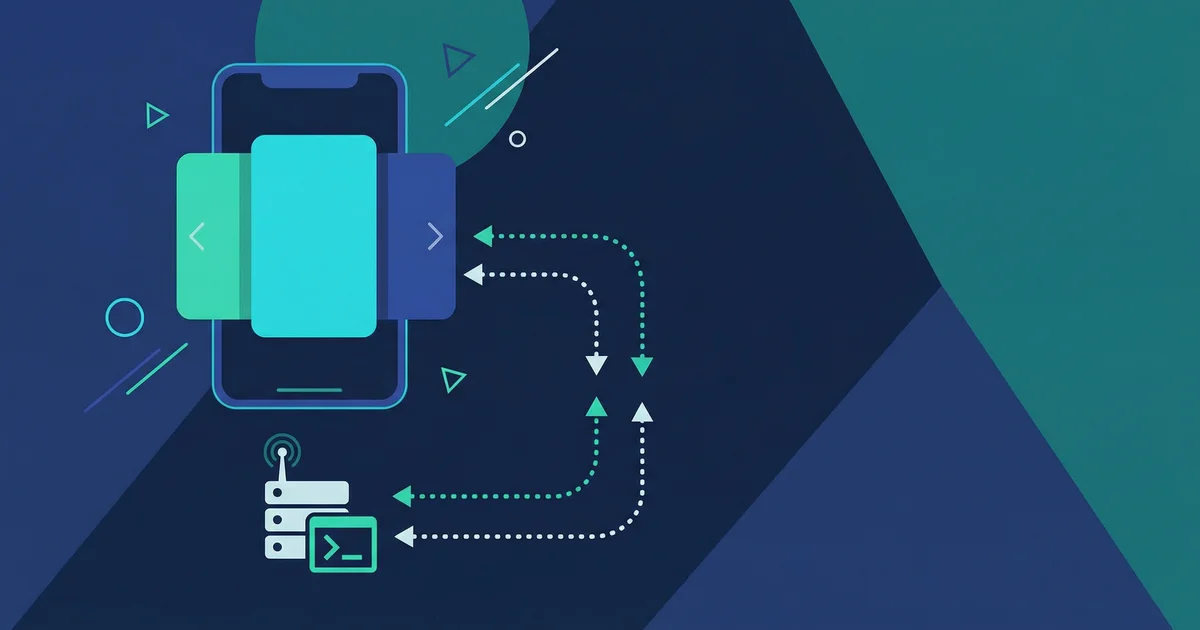
Connect OpenClaw to Telegram in 5 steps. Create a bot in BotFather, set your token, configure allowFrom with your numeric sender ID, approve pairing, and send your first message.

Key takeaways
Create a Telegram bot with @BotFather, copy the token into openclaw.json, set allowFrom to your numeric sender ID (not your @username), approve the pairing code, and send your first message. The whole setup takes about 5 minutes.
Always review commands your agent suggests before approving them. Don't paste prompts from sources you don't trust.
Fixes when it breaks. Workflows when it doesn't.
OpenClaw guides, configs, and troubleshooting notes. Every two weeks.
Introduction
You have OpenClaw running. Now you want to talk to it from your phone.
Telegram is the fastest way. No webhooks to configure. No servers to expose. Long-polling works out of the box.
This guide gets you from zero to first message in about five minutes.
What You Will Need
Before starting:
- OpenClaw installed and gateway running - If you need a server, see How I Finally Got OpenClaw Running 24/7: $6/Month on DigitalOcean. Use this referral link for $200 in free credit.
- A Telegram account - Requires a phone number
- About 5 minutes
If your gateway is not running yet, start it first. The Telegram connection needs a running gateway to work.
OpenClaw Starter Kit: If you are just getting started, the OpenClaw Starter Kit bundles config templates, workspace file examples, and skills we actively use. It covers the setup steps in this guide.
Step 1: Create a Telegram Bot
Telegram bots are created through @BotFather, Telegram's official bot management tool.
- Open Telegram on your phone or desktop
- Search for @BotFather and start a chat
- Send
/newbot - BotFather asks for a display name - pick anything (e.g., "My Assistant")
- BotFather asks for a username - must end in
bot(e.g., "myassistant_bot") - BotFather replies with your bot token
The token looks like this: 123456789:ABCdefGHIjklMNOpqrsTUVwxyz
Keep this token secret. Anyone with the token can control your bot. If it leaks, regenerate it in BotFather with /revoke.
Optional BotFather settings
While you're in BotFather, you can configure a few things:
/setdescription- What users see when they open the bot profile/setabouttext- Short description shown in search results/setuserpic- Give your bot an avatar
These are optional. The bot works without them.
Step 2: Give the Token to Your Agent
The simplest approach: tell your agent. Message your agent through whatever channel is already working (terminal, another chat):
"Set up Telegram with this bot token: 123456789:ABCdefGHIjklMNOpqrsTUVwxyz"
Your agent will:
- Add the token to your OpenClaw config
- Restart the gateway
- Confirm when Telegram is ready
Alternative: Environment variable
If you prefer not to paste tokens in chat:
export TELEGRAM_BOT_TOKEN="123456789:ABCdefGHIjklMNOpqrsTUVwxyz"Add this to your shell profile (.bashrc, .zshrc) or systemd service file to persist it.
Then restart the gateway:
openclaw gateway restartAlternative: Config file
Edit openclaw.json directly:
{
  "channels": {
    "telegram": {
      "enabled": true,
      "botToken": "123456789:ABCdefGHIjklMNOpqrsTUVwxyz"
    }
  }
}
Restart the gateway after editing:
openclaw gateway restartStep 3: Pair Your Telegram Account
OpenClaw uses pairing to control who can message your bot. This prevents random people from using your AI if they find your bot username.
- Open Telegram
- Search for your bot by username (the one ending in
bot) - Send any message - "hello" works
The bot replies with a pairing code like:
Your pairing code is: ABC123 Approve this code to continue.
Now approve it. Tell your agent:
"Approve Telegram pairing code ABC123"
Or use the CLI directly:
openclaw pairing approve telegram ABC123Once approved, you're connected. The bot responds to your messages.
Why pairing exists
Without pairing, anyone who discovers your bot username could chat with your AI and potentially trigger actions. Pairing ensures only approved users get access.
Pairing codes expire after a short time if not approved (see OpenClaw Telegram docs for the current timeout).
You can also pre-approve users by adding their Telegram user ID to channels.telegram.allowFrom in config. But pairing is easier for most setups.
Step 4: Send Your First Message
With pairing approved, send a message to your bot:
"What can you help me with?"
Your agent responds through Telegram. You're now chatting with your AI from your phone.
That's the setup done.
Troubleshooting
Bot does not respond at all
- Check if the gateway is running:
openclaw gateway status - Check logs for errors:
openclaw logs --follow - Verify the token is correct in config or environment
401 Unauthorized error in logs
This is the most common setup error. The 401 Unauthorized error means Telegram rejected your bot token.
Common causes:
- Token typo - Extra space, missing character, pasted with line break
- Token revoked - You regenerated it in BotFather but forgot to update your config
- Wrong token - Copied from a different bot by mistake
Fix it:
Stop the gateway:
openclaw gateway stopGo to @BotFather in Telegram and send /mybots. Select your bot, then "API Token." Copy the token shown (the entire string).
Update your config with the correct token:
export TELEGRAM_BOT_TOKEN="your_correct_token_here"Restart the gateway:
openclaw gateway restartCheck logs for success:
openclaw logs --followLook for "Telegram channel started" in the logs. Still seeing 401? The token is still wrong - copy it again character by character.
For more Telegram troubleshooting, see Fix OpenClaw Telegram Errors.
telegram allowFrom issues
If your bot works for you but not for other users, check your allowFrom configuration.
Symptoms:
- Bot responds to you but ignores other people
- Logs show incoming messages but no responses sent
How allowFrom works:
OpenClaw restricts bot access using channels.telegram.allowFrom in your config. This can be:
- A Telegram username (e.g.,
"@username") - A numeric user ID (e.g.,
123456789) - An array of multiple users
- Set to
"*"to allow anyone (not recommended for security)
To add a new user:
- Get their Telegram user ID. Ask them to message @userinfobot and send you the ID shown.
- Tell your agent: "Add Telegram user ID 123456789 to allowFrom"
- Or edit config manually:
{
  "channels": {
    "telegram": {
      "allowFrom": [123456789, 987654321]
    }
  }
}- Restart the gateway:
openclaw gateway restart
Username vs user ID:
User IDs are more reliable. Usernames can change. If someone changes their Telegram username, allowFrom: "@oldusername" stops working. Use numeric IDs when possible.
For more details on allowFrom issues, see the Telegram troubleshooting guide.
Pairing code never appears
- Gateway might not have started the Telegram channel. Check
openclaw logsfor "Telegram channel started" or errors. - Token might be invalid. Regenerate in BotFather with
/mybots > your bot > API Token. - Bot might not have pairing enabled. Check if
channels.telegram.pairing.enabledis set tofalsein your config.
Bot responds but very slowly
- Check your server's network connection
- Large model responses take time. Consider using a faster model for Telegram.
- If running on a low-resource VPS, check if the server is CPU or memory constrained with
htop
Step 5 (Optional): Prepare for Groups
If you plan to add your bot to Telegram groups later, configure these now in BotFather:
Allow groups:
Send /setjoingroups to BotFather. Select your bot. Choose "Enable".
See all group messages: By default, bots only see messages that @mention them. To see everything:
- Send
/setprivacyto BotFather - Select your bot
- Choose "Disable"
Or make your bot a group admin. Admin bots see all messages regardless of privacy setting.
Note: After changing privacy settings, you need to remove and re-add the bot to existing groups for the change to take effect.
For full group setup instructions, see 6 Telegram Groups That Finally Organized My OpenClaw Agent: Here's How. You can also automate your workflow with OpenClaw cron jobs to schedule daily briefings and backups.
FAQ
Q: Can I use the same bot for multiple OpenClaw instances?
No. Each bot token should connect to one OpenClaw gateway. If you need multiple agents, create multiple bots.
Q: Do I need a public IP or domain for this to work?
No. Long-polling works without exposing any ports. Your server connects outbound to Telegram.
Q: How do I add more users to my bot?
Each new user goes through pairing. They DM the bot, get a code, you approve it. Or add their Telegram user ID to channels.telegram.allowFrom in config.
Q: Can I change the bot username later?
No. Telegram bot usernames are permanent. You would need to create a new bot.
Conclusion
You now have Telegram connected to your OpenClaw agent.
- Created bot with @BotFather
- Gave token to your agent
- Approved the pairing code
- Started chatting
Next step: organize your work with Telegram groups for OpenClaw. Each group becomes a separate project workspace.
Changelog
- 2026-02-07: Initial publication
- 2026-02-24: Updated hero image for improved visual clarity
- 2026-02-25: Added changelog, structural improvements
- 2026-03-22: Added resource link to OpenClaw Starter Kit
Fixes when it breaks. Workflows when it doesn't.
OpenClaw guides, configs, and troubleshooting notes. Every two weeks.