OpenClaw Google Chat Setup in 8 Steps (Solved)
OpenClaw was previously known as Clawdbot and Moltbot. This guide applies to all versions.
Connect OpenClaw to Google Chat using a service account, HTTPS webhook, and full config walkthrough. Covers every step from Cloud project to pairing approval.
Key takeaways
- Google Chat is the most setup-intensive OpenClaw channel: it requires a Google Cloud project, a service account with a JSON key, and a publicly reachable HTTPS endpoint. No OAuth flow is needed once those pieces are in place.
- The service account's JSON key must come from the same Google Cloud project where the Chat app is registered. Mismatched project IDs cause 403 PERMISSION_DENIED errors that look like IAM problems.
- Set a
webhookPasswordin both the OpenClaw config and the Google Chat app URL to block unauthorized requests to your endpoint. - After adding the bot to a space or DM for the first time, run
openclaw pairing list googlechatto retrieve the pairing code andopenclaw pairing approve googlechat <CODE>to activate the conversation.
Always review commands your agent suggests before approving them. Don't paste prompts from sources you don't trust.
Fixes when it breaks. Workflows when it doesn't.
OpenClaw guides, configs, and troubleshooting notes. Every two weeks.
Key takeaways
- Google Chat requires a Google Cloud project, a service account with a JSON key, and a publicly reachable HTTPS endpoint. No OAuth flow is needed.
- The
audiencefield in your OpenClaw config must exactly match the HTTP endpoint URL in the Chat app console, without the password query parameter. - Set a
webhookPasswordin both places to block unauthorized requests to your webhook endpoint. - Use
openclaw pairing list googlechatandopenclaw pairing approve googlechat <CODE>to activate DM conversations after first contact.
Introduction

Google Chat is the hardest OpenClaw (previously known as Clawdbot and Moltbot) channel to set up. Not the most limited, not the most fragile. Just the most steps. Where Telegram takes five minutes and a bot token, Google Chat requires a Cloud project, a service account, a JSON key file, a publicly reachable HTTPS endpoint, and a Chat app registered in the API console. The OpenClaw docs call it "High" complexity. That's earned.
The tradeoff is worth it if your team lives in Google Workspace. Once the pieces are wired together, the channel is rock solid. No QR codes to re-scan, no session tokens to rotate, no long-polling connections to babysit. But getting there takes about 30 minutes of careful configuration. This guide covers every step.
Prerequisites
Before touching any config files, confirm you have all of the following:
Google Workspace requirements:
- A Google Workspace account (a personal Gmail account is not sufficient for creating Chat apps in production)
- Google Workspace admin access, or access to a Google Cloud project where you can create service accounts and enable APIs
- Billing enabled on the Google Cloud project (the Chat API itself is free, but billing must be active to use some console features)
Infrastructure requirements:
- OpenClaw installed and a gateway that can be reached from the public internet over HTTPS
- A domain name or Tailscale setup for the webhook endpoint (no localhost allowed)
- If you are running OpenClaw on a VPS, the DigitalOcean VPS setup guide covers the infrastructure groundwork
Local tools:
openclawCLI installed and accessible from your terminalcurlor similar for testing
Step 1: Create a Google Cloud Project
If you do not already have a Google Cloud project, create one at console.cloud.google.com. A project is the container for the service account, API credentials, and the Chat app configuration. You can use an existing project, but keeping OpenClaw resources in a dedicated project makes permission management cleaner.
Note the project ID. You will need it in later steps.
Step 2: Enable the Google Chat API
Navigate to the Google Chat API page in your Cloud project:
https://console.cloud.google.com/apis/api/chat.googleapis.com/credentialsClick Enable if the API is not already active. You need the API enabled before any credentials or app configuration will work.
Step 3: Create a Service Account
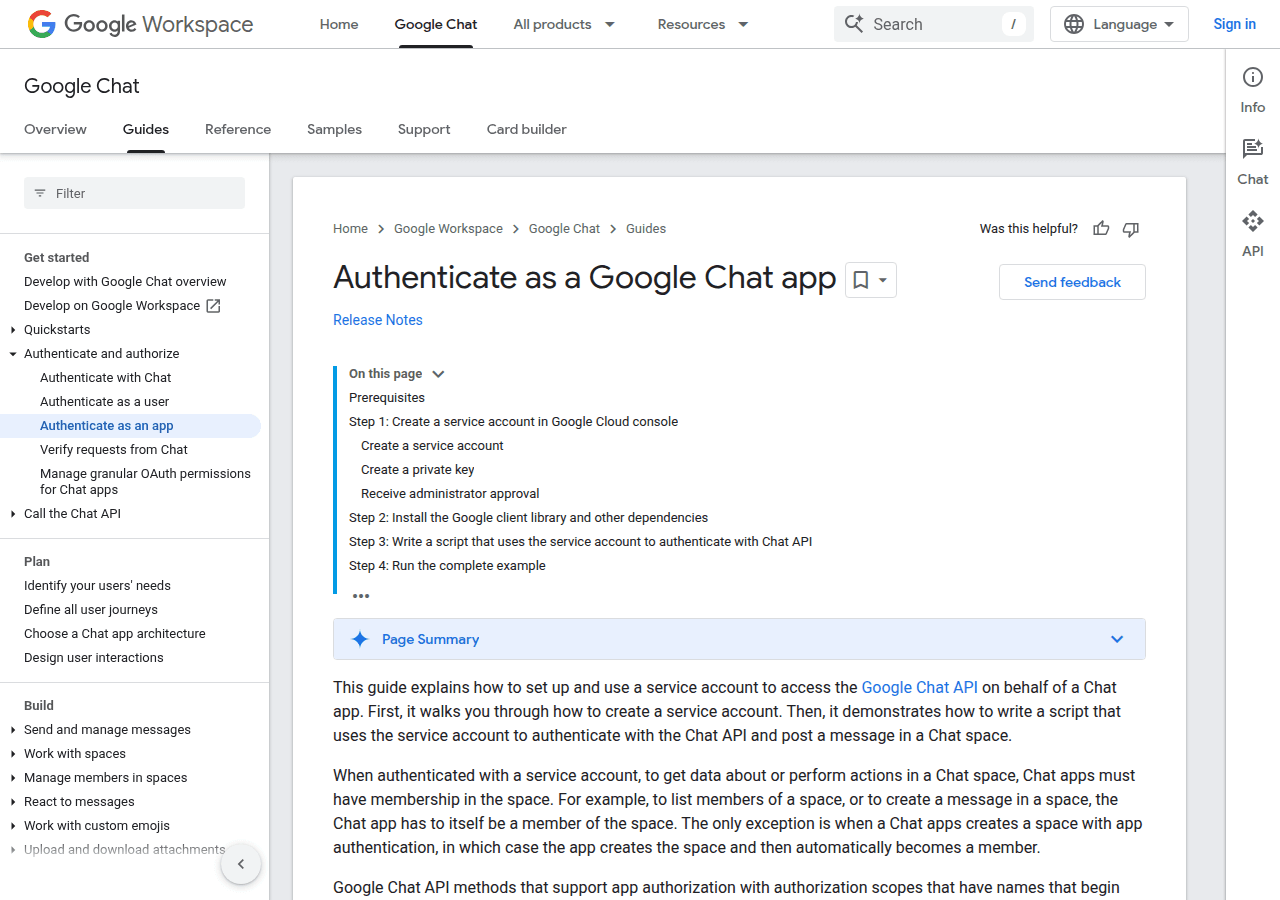
and Download the JSON Key
This is the part where Google Chat earns its complexity rating. OpenClaw authenticates using a service account rather than an OAuth user flow. The upside: no browser login redirects, no refresh token rotation, no "please re-authorize" prompts six months from now. The downside: you're about to handle a private key file, and you need to get the project ID right on the first try.
Create the service account:
- In the Cloud Console, go to IAM & Admin > Service Accounts
- Click Create Service Account
- Name it something descriptive, such as
openclaw-chat - Leave the optional role assignment blank. The Chat API does not require IAM roles on the service account itself.
- Click Done
Download the JSON key:
- Open the service account you just created
- Click the Keys tab
- Click Add Key > Create new key
- Select JSON and click Create
- The browser downloads a JSON file. Store it somewhere stable and secure, such as
~/.openclaw/googlechat-service-account.json
Keep this file private. It contains a private key that grants the service account's identity. If you are following the OpenClaw security hardening guide, restrict the file permissions to 600 and consider storing it outside your web root.
chmod 600 ~/.openclaw/googlechat-service-account.jsonStep 4: Create the Google Chat App
The Chat app is what appears in Google Chat as your bot. Users will search for it by name and add it to spaces or direct messages. This configuration lives in the Google Chat API console, not in IAM or the credentials section.
Navigate to:
https://console.cloud.google.com/apis/api/chat.googleapis.com/hangouts-chatFill in the fields as follows:
Application info:
- App name: OpenClaw (or whatever display name you want users to see)
- Avatar URL: A publicly accessible image URL for the bot's avatar
- Description: A short description of what the bot does
Interactive features:
- Check Enable Interactive Features
- Check Join spaces and group conversations
Connection settings:
- Select HTTP endpoint URL
- Enter your webhook URL. If you have not set up the webhook endpoint yet, use a placeholder and come back to update this after Step 5. The format will be:
https://your-domain.com/googlechat
If you plan to use a webhook password (recommended, covered in Step 6), enter the URL with the password query parameter appended:
https://your-domain.com/googlechat?password=your-secure-password-hereVisibility:
- Select Make this Google Chat app available to specific people and groups in your domain
- Add your email address (and any other users who should be able to find and use the bot)
App status:
- Set to Live
Save the configuration.
Step 5: Expose the OpenClaw Webhook
Here's where people get stuck. Google Chat delivers messages to your bot via HTTP POST to the webhook URL from Step 4. Your gateway must be reachable from Google's servers over HTTPS with a valid certificate. Self-signed won't cut it.
Three options, ranked by how much pain they involve:
Option A: Tailscale Funnel (recommended for most setups)
Tailscale Funnel exposes a specific path from your gateway publicly while the rest of your gateway stays inside your tailnet.
Make sure your gateway is running on port 18789 (default):
ss -tlnp | grep 18789Expose the webhook path publicly:
tailscale funnel --bg --set-path /googlechat http://127.0.0.1:18789/googlechatVerify the public URL. Look for https://<node-name>.<tailnet>.ts.net/googlechat:
tailscale funnel statusOption B: Caddy reverse proxy
If you are running Caddy for other services, add a route for the webhook path:
your-domain.com {
  reverse_proxy /googlechat* localhost:18789
}
Caddy handles HTTPS certificate provisioning automatically via Let's Encrypt.
Option C: Cloudflare Tunnel
In your Cloudflare Tunnel configuration, map the /googlechat path to http://localhost:18789/googlechat. Set a default rule returning HTTP 404 so the rest of your gateway does not become publicly accessible.
Once you have the public URL, go back to the Chat app configuration (Step 4) and update the HTTP endpoint URL if you used a placeholder.
Step 6: Configure OpenClaw
Open your openclaw.json configuration file. Add or update the channels.googlechat section:
{
  "channels": {
    "googlechat": {
      "enabled": true,
      "serviceAccountFile": "/home/youruser/.openclaw/googlechat-service-account.json",
      "audienceType": "app-url",
      "audience": "https://your-domain.com/googlechat",
      "webhookPath": "/googlechat",
      "webhookPassword": "your-secure-password-here",
      "dmPolicy": "pairing",
      "groupPolicy": "allowlist",
      "typingIndicator": "message",
      "groups": {
        "spaces/AAAA_BBBBBBBBBB": {
          "allow": true,
          "requireMention": true,
          "users": ["users/1234567890"]
        }
      }
    }
  }
}
Field breakdown:
| Field | What it does |
|---|---|
serviceAccountFile | Absolute path to the JSON key downloaded in Step 3 |
audienceType | Set to app-url when using a webhook URL as the audience |
audience | Must exactly match the HTTP endpoint URL configured in the Chat app (without the password parameter) |
webhookPath | The path segment of the URL where OpenClaw listens |
webhookPassword | A secret string appended as ?password= to the webhook URL in the Chat app config |
dmPolicy | pairing requires explicit approval for new DM conversations |
groupPolicy | allowlist means only spaces listed in groups get responses |
typingIndicator | message sends a typing indicator while generating a response |
Getting the space ID:
When someone adds your bot to a Google Chat space, OpenClaw will log the space ID. You can also get it by running:
openclaw logs --followThen send any message to the bot in the space. Look for a line containing spaces/ followed by the space identifier. Copy that into your groups config.
Getting a user ID:
User IDs in Google Chat use the format users/<numeric-id>. The numeric ID appears in OpenClaw logs when a user sends a message. You can also retrieve it via the Google People API or Admin SDK if you have access. The OpenClaw docs recommend using users/ format rather than email addresses for reliability.
Webhook password note:
The webhookPassword adds a query parameter to the URL that Google Chat includes with every request. OpenClaw rejects any request that does not include the correct password. This prevents someone who discovers your webhook URL from sending arbitrary requests to your bot. Per the OpenClaw docs: "Always set a webhook password. Localhost trust can be bypassed by proxies."
The password goes in two places:
- In
openclaw.jsonaswebhookPassword - At the end of the HTTP endpoint URL in the Google Chat app config, as
?password=your-secure-password-here
Step 7: Start the Gateway
Apply the configuration:
openclaw gateway restartConfirm the Google Chat channel is active:
openclaw channels statusLook for googlechat with status active. If it shows an error, check the path to the service account JSON file and confirm the audience field exactly matches your webhook URL.
Step 8: Add the Bot to Google Chat and Approve Pairing
Open chat.google.com in a browser.
To start a direct message:
- Click the + button next to Direct Messages in the sidebar
- Search for the app name you configured in Step 4 (e.g., "OpenClaw")
- Select the app from the results
- Click Chat
- Send a message such as "Hello"
Your bot will receive the message. With dmPolicy: "pairing", it will respond with a pairing code.
Approve the pairing from your terminal:
openclaw pairing list googlechat
openclaw pairing approve googlechat <CODE>
Replace <CODE> with the code from the list. Once approved, the conversation is active.
For group spaces, add the bot by mentioning @OpenClaw (or whatever you named it) in the space, then confirm the space ID in your logs and add it to the groups config as described in Step 6.
Verify It Works
After completing the pairing, send a message to the bot in Google Chat. A working setup will:
- Send the bot your message and see a typing indicator appear (if
typingIndicatoris set tomessage) - Receive a response within a few seconds
Run a quick diagnostic if anything seems off:
Check channel health:
openclaw channels status --probeWatch the live log while sending a test message:
openclaw logs --followIn the live log, a successful message exchange looks like:
googlechat: recv dm from users/1234567890
googlechat: routing to session ...
googlechat: send reply to spaces/AAAA...
If you see drop entries, the troubleshooting section below covers the common causes.
Common Issues
405 Method Not Allowed
Google Chat sends a POST request to your webhook, but the endpoint returns 405.
Causes and fixes:
- The
channels.googlechatsection is missing or malformed inopenclaw.json. Confirm the JSON is valid and the channel is present. - The gateway was not restarted after you added the config. Run
openclaw gateway restart. - The webhook path in the Chat app config does not match
webhookPathinopenclaw.json. Both must be identical.
Verify with:
openclaw channels status
curl -X POST https://your-domain.com/googlechat -d '{}' -v
A working endpoint returns 400 or 401 (it rejects malformed/unauthenticated requests), not 404 or 405.
Messages Arrive But the Bot Never Replies
The webhook is receiving events but OpenClaw is dropping them silently.
Causes and fixes:
dmPolicy: "pairing"and the sender has not been approved yet. Checkopenclaw pairing list googlechatand approve if there is a pending code.groupPolicy: "allowlist"and the space is not in thegroupsconfig. Add the space ID to the config and restart the gateway.requireMention: trueon a space, and the message did not tag the bot. Either setrequireMention: falseor ensure users are tagging the bot when they message.
Authentication Errors
The gateway logs show auth failures or the Chat app shows delivery errors.
Causes and fixes:
- The
audiencefield inopenclaw.jsondoes not exactly match the HTTP endpoint URL in the Chat app. This is a common mismatch. Copy the URL directly from the Chat app config and paste it intoaudience. Do not include the?password=parameter in the audience field. - The service account JSON file path is wrong or the file is not readable. Test with:
cat /path/to/your/service-account.json | head -5 - The
audienceTypeis set incorrectly. Useapp-urlwhen using the webhook URL as the audience, andproject-numberonly if explicitly instructed.
Run openclaw channels status --probe for a diagnostic summary.
Mention Gating Blocks All Replies in Spaces
You have requireMention: true in a space config, but even messages that tag the bot get no response.
Fix: Set the botUser field to the bot's user resource name. This is required for OpenClaw to recognize when it has been mentioned.
{
  "channels": {
    "googlechat": {
      "botUser": "users/123456789012345678"
    }
  }
}
To find your bot's user resource name, check the OpenClaw logs for the sender field on any incoming event, or look in the Chat API console under your app's credentials.
Webhook Password Mismatch
Events arrive at the gateway but OpenClaw rejects them with an auth error.
Fix: Confirm the password in openclaw.json under webhookPassword exactly matches the ?password= value appended to the endpoint URL in the Chat app configuration. Any character difference, including trailing spaces or URL encoding differences, will cause rejection. Regenerate a simple alphanumeric password and set it in both places simultaneously to avoid copy-paste errors.
For issues not covered above, the dedicated Google Chat error reference covers a wider range of failure modes with more diagnostic steps. The universal OpenClaw troubleshooting guide is the right place to start if the issue seems to cut across channels rather than being specific to Google Chat.
What You Now Have
At this point, OpenClaw is connected to Google Chat via an HTTP webhook backed by a service account. The bot can receive direct messages and respond in spaces where it has been added, with access controlled through the dmPolicy and groupPolicy settings.
The main things to keep in mind as you continue configuring:
- The
audiencefield must exactly match the endpoint URL in the Chat app at all times. If you change the webhook URL, update both places. - Space IDs and user IDs are available in
openclaw logs --follow. Use them to refine your allowlists. - The service account JSON file is sensitive. Treat it like a password: restrict its permissions, keep it out of version control, and rotate it if you suspect it has been exposed.
Google Chat is one of the more involved channels to configure, but the webhook-based architecture is stable once it is running. There is no QR code to re-scan, no session to maintain, and no long-polling connection to worry about.
FAQ
Does the Google Chat integration work with a personal Gmail account?
Partially. You can configure a Chat app and add your personal Gmail to the visibility allowlist. However, for production use in an organization, a Google Workspace account is required. Personal Gmail accounts cannot use all Chat API features and cannot be approved for Workspace domains.
How often does the service account JSON key need to be rotated?
Google recommends rotating service account keys periodically as a security best practice. Rotation involves generating a new JSON key in Google Cloud Console, downloading it, updating serviceAccountFile in your OpenClaw config, and restarting the gateway. The old key should be deleted from Google Cloud Console after the new one is active.
Can OpenClaw respond in Google Chat spaces without being directly mentioned?
Yes. Set requireMention: false for a specific space in the groups config block. Be aware this means the bot will respond to every message in that space, which may be noisy in active workspaces.
What if my webhook URL changes after setup?
Update both the audience field in your OpenClaw config and the HTTP endpoint URL in the Google Chat app console. They must match exactly. Restart the gateway with openclaw gateway restart after making config changes, then confirm connectivity with openclaw channels status --probe.
For more on building AI-powered workflows, see EmergentWeirdness.com.
Sources
- OpenClaw Google Chat channel documentation
- OpenClaw channels overview
- Google Chat API: Service account authentication
- Google Cloud Console: Chat API credentials
- Google Cloud Console: Chat app configuration
Conclusion
That was a lot of steps. The payoff: once the audience field, service account, and webhook password are correctly wired together, the channel runs without maintenance. No tokens to refresh, no OAuth to re-auth, no QR codes. It just works.
If errors surface after setup, the fix OpenClaw Google Chat errors guide covers the specific failure modes in detail, and the universal troubleshooting guide covers cross-channel gateway diagnostics that apply here as well.
Changelog
- 2026-02-17: Initial publication
- 2026-02-25: Added changelog, structural improvements
Fixes when it breaks. Workflows when it doesn't.
OpenClaw guides, configs, and troubleshooting notes. Every two weeks.