Fix 6 Common OpenClaw BlueBubbles Errors (Proven Solutions)
OpenClaw was previously known as Clawdbot and Moltbot. This guide applies to all versions.
Fix OpenClaw BlueBubbles errors: plugin not found, 401 auth failures, ECONNREFUSED, missing webhook events, tapback issues, and macOS permission errors.
Key takeaways
- Run the Quick Diagnostic first: confirm the plugin is installed, the BlueBubbles server responds to a curl ping, and the gateway is receiving webhook events.
- The three frequent failure roots are: Mac is asleep (prevents server connections), macOS permissions are incomplete (Automation or Full Disk Access), or the webhook URL is mismatched between BlueBubbles and OpenClaw config.
- Tapback reactions and advanced group actions require BlueBubbles Private API mode to be enabled. Without it, reactions silently fail.
- On headless Mac setups, Messages.app needs a LaunchAgent to stay alive. Without it, message delivery stops after a period of inactivity.
Always review commands your agent suggests before approving them. Don't paste prompts from sources you don't trust.
Fixes when it breaks. Workflows when it doesn't.
OpenClaw guides, configs, and troubleshooting notes. Every two weeks.
Introduction
Three systems have to cooperate for iMessage to work through OpenClaw (previously known as Clawdbot and Moltbot): your Mac (which must stay awake and logged in), the BlueBubbles server app (which must keep talking to Messages.app), and OpenClaw's plugin layer (which must reach BlueBubbles over the network). When the chain breaks, the error sits at one of those three seams.
The good news: the symptoms are distinctive enough to tell you which seam broke. This guide is organized by the exact error or behavior you see, followed by the fix. If you're setting up BlueBubbles for the first time, the setup guide is the right starting point.
Quick Diagnostic
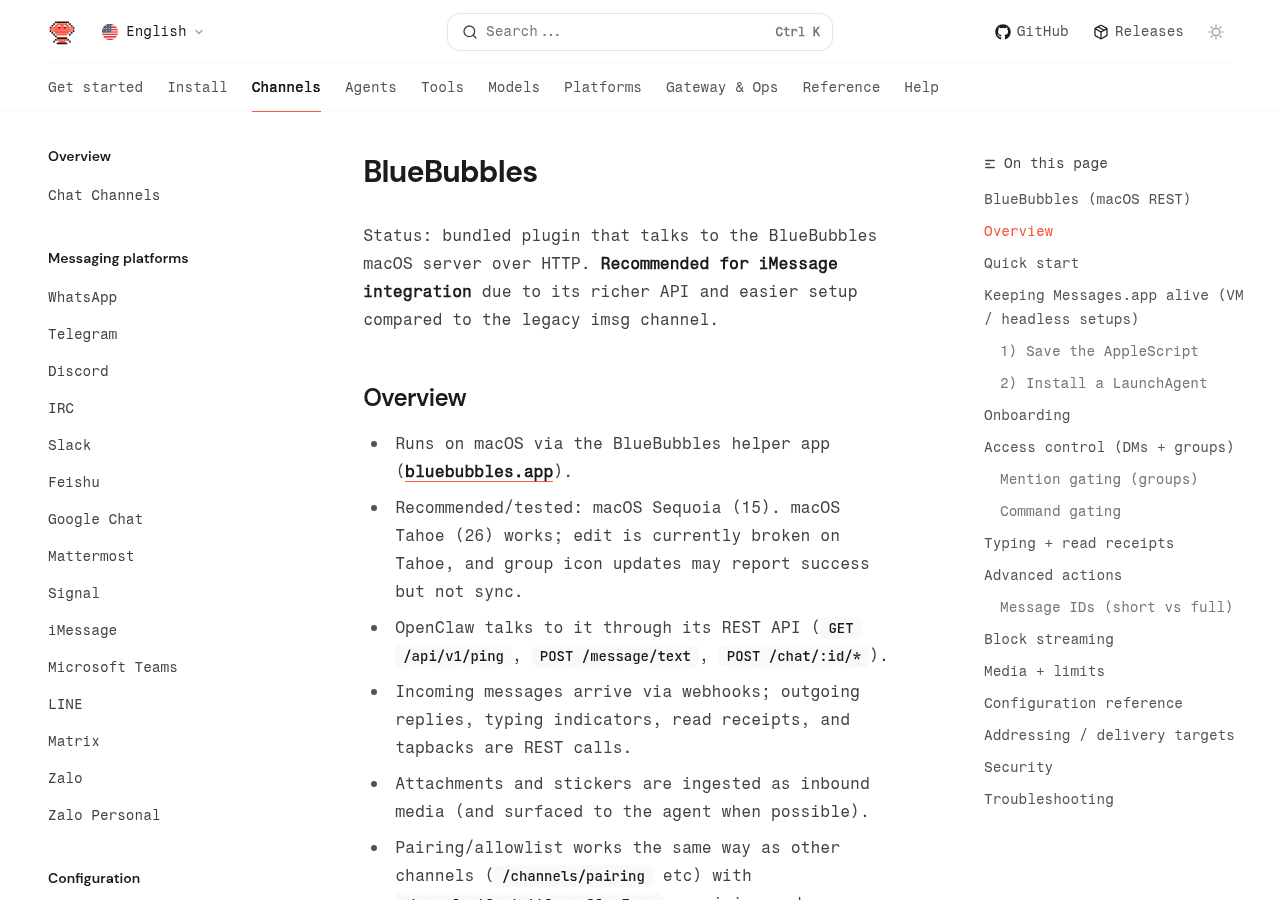
Run these three checks before diving into specific errors. They cover a frequent causes of broken integrations.
Check 1: Is the plugin installed?
openclaw plugins list | grep bluebubblesIf you get no output, the plugin is not installed. Fix:
openclaw plugins install @openclaw/bluebubbles
openclaw gateway restart
Check 2: Can OpenClaw reach the BlueBubbles server?
curl -s "http://YOUR_MAC_IP:YOUR_PORT/api/v1/ping?password=YOUR_PASSWORD"Replace the placeholders with your actual values from the BlueBubbles Settings panel. A working server returns {"status": 200, "message": "pong"}. Any other result means the server is unreachable or the password is wrong.
Check 3: Is the gateway receiving webhook events?
openclaw logs --followSend a test iMessage from your iPhone to the Mac linked to BlueBubbles. You should see an inbound event appear in the log within a few seconds. If nothing appears, the webhook is not firing.
If all three checks pass and you still have problems, work through the specific error sections below.
Plugin and Auth Errors
Error: "Plugin @openclaw/bluebubbles not found"
What you see: OpenClaw starts normally but the bluebubbles channel shows as unavailable. Running openclaw channels status returns no entry for BlueBubbles.
Cause: BlueBubbles ships as a bundled extension plugin, but it only activates when the channels.bluebubbles config block exists and is set to enabled: true. If the config section is missing or malformed, the plugin stays dormant.
Fix:
Confirm the plugin is available:
openclaw plugins list | grep bluebubblesIf it shows up but the channel is inactive, the config is the problem. Add or fix the channels.bluebubbles block in your openclaw.json (see the setup guide for the full config). Then restart:
openclaw gateway restart
openclaw channels status
The BlueBubbles channel should appear with status connected or waiting-for-webhook. If the plugin itself is missing from the list, you may be on an older OpenClaw version that doesn't bundle it. Update with npm install -g openclaw@latest.
Error: "401 Unauthorized" or "Invalid password"
What you see: OpenClaw logs show 401 responses when attempting to call the BlueBubbles API. Messages are not sent. The Quick Diagnostic curl command above returns an error instead of a pong.
Cause: The password field in your OpenClaw config does not match the password set in the BlueBubbles app. This is a common mismatch after changing the BlueBubbles server password without updating OpenClaw.
Fix:
- Open BlueBubbles on your Mac.
- Go to Settings and confirm or reset the API password.
- Update your OpenClaw config:
{
  "channels": {
    "bluebubbles": {
      "serverUrl": "http://YOUR_MAC_IP:YOUR_PORT",
      "password": "the-correct-password-here"
    }
  }
}- Restart the gateway:
openclaw gateway restartThe password must appear in two places: the OpenClaw config (for polling) and the webhook URL you set inside BlueBubbles (for inbound events). Both must match.
Error: "Pairing code expired" or "No pairing code found"
What you see: You try to approve a DM sender with openclaw pairing approve bluebubbles <CODE> and the command returns an expiry error, or openclaw pairing list bluebubbles shows nothing.
Cause: BlueBubbles pairing codes are valid for one hour. If you did not approve the pairing within that window, or if the gateway restarted before approval, the code expires.
Fix:
- Have the user send a new message from iMessage. This generates a fresh pairing request.
- List the new pending code:
openclaw pairing list bluebubbles- Approve immediately:
openclaw pairing approve bluebubbles <NEW_CODE>If you are the only user and you keep missing the window, temporarily switch dmPolicy to allowlist in your config and add your handle to allowFrom directly. This skips the pairing flow:
{
  "channels": {
    "bluebubbles": {
      "dmPolicy": "allowlist",
      "allowFrom": ["+15555550123"]
    }
  }
}
Server Connection Errors
Error: "ECONNREFUSED" or "connect ETIMEDOUT"
What you see: OpenClaw logs show connection refused or timeout errors pointing at your Mac's IP and BlueBubbles port. No messages send or receive.
Cause: Four possibilities. In most cases the culprit is the Mac going to sleep. The other three: BlueBubbles is not running, the firewall is blocking the port, or the Mac's IP address changed after a DHCP renewal.
Fix, step by step:
Step 1: Confirm BlueBubbles is running. Open your Mac and check that the BlueBubbles server app is open and showing a green status. BlueBubbles does not run as a system service by default. It must be open as an application.
Step 2: Disable Energy Saver sleep. macOS will put the Mac to sleep if it is idle, which kills the BlueBubbles server connection. Prevent this:
- Open System Preferences (or System Settings on Ventura and later).
- Go to Battery or Energy Saver, depending on your macOS version.
- Set "Prevent automatic sleeping when the display is off" to On. For a desktop Mac, set "Put hard disks to sleep when possible" to Off and set the display sleep timer to Never.
On macOS Sonoma and later, the setting is under System Settings > Energy.
Step 3: Check the macOS firewall. If the macOS application firewall is enabled and blocking BlueBubbles, inbound connections from your OpenClaw server will fail.
- Open System Settings > Privacy and Security > Firewall.
- Click Firewall Options.
- Find BlueBubbles in the list. If it shows "Block incoming connections," change it to "Allow incoming connections."
If BlueBubbles is not in the list, click the + button and add it manually.
Step 4: Verify the IP address. If your Mac uses DHCP, its local IP can change after a router restart or lease renewal. Check the current IP in System Settings > Wi-Fi (or Ethernet) > Details, and update serverUrl in your OpenClaw config if it changed. Assigning a static IP or DHCP reservation to the Mac is the permanent fix.
Error: Webhook events stop arriving
What you see: OpenClaw can send messages outbound, but inbound messages from iMessage stop appearing. The openclaw logs --follow test shows nothing when messages arrive on the Mac.
Cause: The webhook URL registered in BlueBubbles is wrong, the gateway restarted and changed ports, or BlueBubbles had a crash and dropped the webhook registration.
Fix:
- Open BlueBubbles on your Mac and go to Settings > Webhooks.
- Confirm the webhook URL matches your gateway's address exactly, including the path and password query parameter:
http://YOUR_GATEWAY_IP:18789/bluebubbles-webhook?password=YOUR_PASSWORDIf the gateway is on the same machine as BlueBubbles, use the local address. If it is on a remote server, use the public address, and make sure port 18789 is reachable from the Mac.
- Delete and re-add the webhook in BlueBubbles if the URL looks correct but events still do not arrive.
- Restart the BlueBubbles server app.
- Restart the OpenClaw gateway:
openclaw gateway restartMessage Delivery Failures
Symptom: Messages send but are never delivered
What you see: OpenClaw confirms the send request (no error in logs), but the recipient never receives the message, and it does not appear in the Mac's Messages app.
Cause: The Mac's Messages app is not running, or it has lost its iMessage session.
Fix:
Check Messages is running. Open the Mac and confirm the Messages app is open and signed into your iMessage account. BlueBubbles depends on Messages being active to inject outbound messages.
Set up the keep-alive LaunchAgent. On headless or VM-based Mac setups, Messages can quietly exit after a period of inactivity. The official workaround documented by the BlueBubbles project is a macOS LaunchAgent that pokes Messages every five minutes (source: BlueBubbles documentation):
Create the AppleScript at ~/Scripts/poke-messages.scpt:
try
  tell application "Messages"
    if not running then
      launch
    end if
    set _chatCount to (count of chats)
  end tell
on error
  -- Ignore transient failures
end try
Create the LaunchAgent at ~/Library/LaunchAgents/com.user.poke-messages.plist:
<?xml version="1.0" encoding="UTF-8"?>
<!DOCTYPE plist PUBLIC "-//Apple//DTD PLIST 1.0//EN"
  "http://www.apple.com/DTDs/PropertyList-1.0.dtd">
<plist version="1.0">
  <dict>
    <key>Label</key>
    <string>com.user.poke-messages</string>
    <key>ProgramArguments</key>
    <array>
      <string>/bin/bash</string>
      <string>-lc</string>
      <string>/usr/bin/osascript "$HOME/Scripts/poke-messages.scpt"</string>
    </array>
    <key>RunAtLoad</key>
    <true/>
    <key>StartInterval</key>
    <integer>300</integer>
    <key>StandardOutPath</key>
    <string>/tmp/poke-messages.log</string>
    <key>StandardErrorPath</key>
    <string>/tmp/poke-messages.err</string>
  </dict>
</plist>
Load it:
launchctl load ~/Library/LaunchAgents/com.user.poke-messages.plistSymptom: Reactions (tapbacks) not sending
What you see: OpenClaw attempts to send a tapback reaction, but the reaction never appears in the conversation. No obvious error, or you see a silent failure in the logs.
Cause: Tapbacks and other advanced actions require BlueBubbles Private API to be enabled. Without it, the BlueBubbles server can read messages but cannot inject reactions or perform edit, unsend, or group management actions.
Fix:
- Open BlueBubbles on your Mac.
- Go to Settings > Private API.
- Enable the Private API. This requires the macOS Accessibility permission.
- Grant Accessibility permission when prompted: System Settings > Privacy and Security > Accessibility > toggle BlueBubbles On.
Confirm in your OpenClaw config that reactions are enabled:
{
  "channels": {
    "bluebubbles": {
      "actions": {
        "reactions": true
      }
    }
  }
}
macOS Permission Errors
Error: BlueBubbles cannot read messages history
What you see: BlueBubbles is running but shows an error about database access, or openclaw logs shows errors when fetching message history. The Quick Diagnostic curl test works (server is up) but message context is empty or missing.
Cause: BlueBubbles needs Full Disk Access to read the Messages SQLite database at ~/Library/Messages/chat.db. Without this permission, it can connect but cannot read history.
Fix:
- Open System Settings > Privacy and Security > Full Disk Access.
- Find BlueBubbles in the list. If it is not there, click the + button and navigate to the BlueBubbles app in your Applications folder.
- Toggle Full Disk Access On for BlueBubbles.
- Restart BlueBubbles.
On macOS Sonoma and later, you may also need to grant Full Disk Access to the BlueBubbles helper process separately.
Error: Edit and unsend actions fail on macOS Tahoe (26)
What you see: Edit and unsend API calls return a success response from BlueBubbles, but the message is not edited or retracted in Messages. This only affects macOS 26 Tahoe.
Cause: This is a known issue documented by the BlueBubbles project and in the OpenClaw channels documentation. A private API change in macOS Tahoe broke the edit and unsend injection mechanism. The fix is on the BlueBubbles roadmap but was not resolved as of this writing.
Workaround: Disable edit and unsend in your OpenClaw config to avoid misleading success responses:
{
  "channels": {
    "bluebubbles": {
      "actions": {
        "edit": false,
        "unsend": false
      }
    }
  }
}
This prevents OpenClaw from attempting these actions rather than reporting false success. Monitor the BlueBubbles GitHub releases for a fix and re-enable when the issue is resolved.
The OpenClaw team recommends macOS Sequoia 15 for the most stable BlueBubbles experience. If Tahoe compatibility is important to your setup, check the OpenClaw security guide for notes on running your Mac in a controlled configuration.
Group Chat Issues
Symptom: Group messages are ignored by OpenClaw
What you see: DMs work correctly, but messages sent in iMessage group chats get no response from OpenClaw.
Cause: Group chats are controlled by a separate policy layer in the BlueBubbles channel config. The default groupPolicy is not open, so group messages are dropped unless explicitly allowed.
Fix:
Set the group policy to open (accepts messages from any group) or allowlist (only specific groups):
{
  "channels": {
    "bluebubbles": {
      "groupPolicy": "open"
    }
  }
}
Or allowlist specific groups by their chat GUID:
{
  "channels": {
    "bluebubbles": {
      "groupPolicy": "allowlist",
      "groups": {
        "iMessage;+;chat123456789": {
          "requireMention": true
        }
      }
    }
  }
}
To find a group's chat GUID, send a message from that group and check the OpenClaw logs. The GUID will appear in the dropped-message log entry.
Note that OpenClaw has no access to native iMessage group mentions. If you set requireMention: true, you need to configure regex patterns for mention detection:
{
  "groups": {
    "iMessage;+;chat123456789": {
      "requireMention": true,
      "mentionPatterns": ["@openclaw", "hey bot"]
    }
  }
}
If You Are Still Stuck
If you've gotten this far and nothing has fixed it, go back to the Quick Diagnostic at the top. Run all three checks again. BlueBubbles errors come down to one of three root causes: the Mac is asleep, macOS permissions are incomplete, or the webhook URL drifted out of sync between BlueBubbles and OpenClaw.
For problems not covered here, the OpenClaw universal troubleshooting guide covers gateway diagnostics, log reading, and how to use openclaw doctor to catch config problems automatically. If the issue appears to be related to the initial setup rather than a broken integration, the BlueBubbles setup guide walks through the full installation from scratch.
If you ran into errors during the original OpenClaw installation, those are covered separately in fixing OpenClaw installation errors.
The most reliable next step when BlueBubbles is still silent is:
Full channel probe with verbose output:
openclaw channels status --probe --verboseCheck for config validation errors:
openclaw doctorFull log dump from last gateway restart:
openclaw logs --since-restartFAQ
Do you need a dedicated Mac for this?
No, but the Mac must be on and awake whenever you want iMessage access. Most users run BlueBubbles on a Mac mini that stays on permanently. Any Mac running macOS 12 Monterey or later will work. Sequoia 15 is the most stable version for BlueBubbles as of this writing.
Can BlueBubbles run on a Mac in a VM?
Yes, with caveats. Apple Silicon VMs on macOS are supported, and the BlueBubbles project has documented this path. The Messages keep-alive LaunchAgent described above is especially important in VM setups. Performance and reliability vary by hypervisor.
Does this work with SMS messages, not just iMessage?
BlueBubbles can relay SMS messages if your Mac is set up to receive SMS via iPhone mirroring (Continuity). This requires your iPhone to be on the same Wi-Fi network as the Mac. Reliability of SMS relay depends on iOS and macOS versions and is less predictable than iMessage.
What is the legacy iMessage channel and should you use it?
The legacy imessage channel in OpenClaw uses a CLI tool called imsg and is marked deprecated. It has a smaller feature set than BlueBubbles and requires more complex permission setup. The OpenClaw documentation recommends BlueBubbles for all new setups. If you are on the legacy channel, migrating is worthwhile.
The BlueBubbles server shows "connected" but OpenClaw says it cannot reach it. Why?
This usually means the Mac is reachable from your local network but not from wherever OpenClaw is running. If OpenClaw is on a remote VPS, the BlueBubbles port needs to be accessible from the internet, or you need a tunnel (such as Tailscale or Cloudflare Tunnel) connecting the two. The firewall and network routing sections above cover this.
Sources
- OpenClaw channels documentation, BlueBubbles section: https://docs.openclaw.ai/channels/bluebubbles
- BlueBubbles official site and documentation: https://bluebubbles.app
- BlueBubbles server GitHub releases (macOS Tahoe compatibility status): https://github.com/BlueBubblesApp/bluebubbles-server/releases
- macOS Privacy and Security permissions overview: https://support.apple.com/guide/mac-help/change-privacy-security-settings-mh40600/mac
For more on AI agent workflows, see EmergentWeirdness.com.
Conclusion
BlueBubbles errors usually trace back to one of three failure points: the Mac going to sleep, macOS permissions not being granted to BlueBubbles, or the webhook URL drifting out of sync between the BlueBubbles settings and the OpenClaw config. The Quick Diagnostic at the top of this guide catches all three quickly.
For first-time setup, the BlueBubbles setup guide walks through the full installation process. For cross-channel gateway issues that are not specific to BlueBubbles, the universal troubleshooting guide covers the diagnostic commands and patterns that apply across every OpenClaw channel.
Changelog
- 2026-02-17: Initial publication
- 2026-02-25: Added changelog, structural improvements
Fixes when it breaks. Workflows when it doesn't.
OpenClaw guides, configs, and troubleshooting notes. Every two weeks.