OpenClaw WhatsApp Setup Guide: Connect in 4 Steps
OpenClaw was previously known as Clawdbot and Moltbot. This guide applies to all versions.
Connect OpenClaw to WhatsApp in 4 steps. No new phone number needed. Scan a QR code, pair your account, and chat with your AI from your existing WhatsApp.
Key takeaways
No new phone number needed. OpenClaw (previously known as Clawdbot and Moltbot) connects to your existing WhatsApp account like a linked device. Tell your agent to enable WhatsApp, scan the QR code from your logs, approve the pairing code, and you are chatting.
Always review commands your agent suggests before approving them. Don't paste prompts from sources you don't trust.
Fixes when it breaks. Workflows when it doesn't.
OpenClaw guides, configs, and troubleshooting notes. Every two weeks.
Introduction
WhatsApp is the messaging app my family uses. My parents are on it. My team is on it. Adding my AI there meant I could share answers and summaries without switching apps.
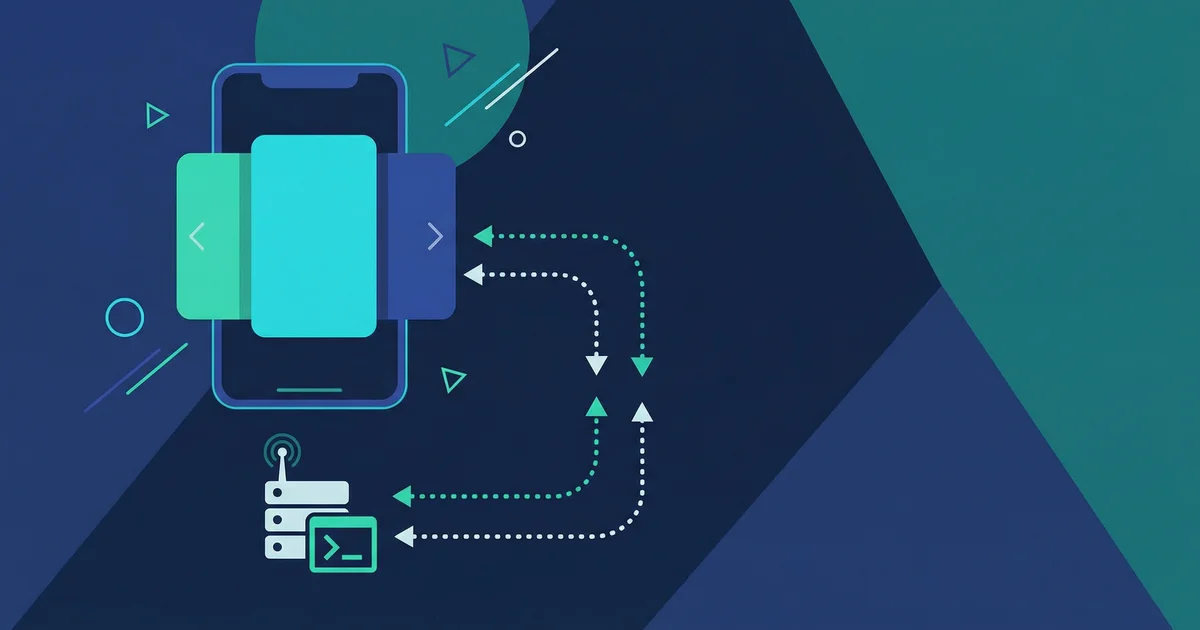
The setup is different from Telegram. No bot registration. No phone number to buy. WhatsApp uses a linked device model, the same way WhatsApp Web works on your browser. OpenClaw connects using whatsapp-web.js, an open-source Node.js library that links to your WhatsApp account. Your gateway acts as a WhatsApp Web session. Messages come in, your AI responds, and the conversation appears in your normal WhatsApp chat.
No API approval needed. No Meta developer account. Just a QR code.
If you need a server first, see How I Finally Got OpenClaw Running 24/7: $6/Month on DigitalOcean.
What You Will Need
Before starting:
- OpenClaw installed and gateway running - See How I Finally Got OpenClaw Running 24/7: $6/Month on DigitalOcean if you need a server.
- Your existing WhatsApp account on your phone. No new number needed.
- About 7 minutes - The QR scan is the slowest part.
WhatsApp allows up to 4 linked devices per account. Your phone stays the primary device. OpenClaw links as one of those 4 slots.
Step 1: Enable the WhatsApp Channel
Tell your agent to enable WhatsApp:
"Enable the WhatsApp channel and show me the QR code"
Your agent will:
- Enable the WhatsApp channel in your OpenClaw config
- Start the whatsapp-web.js session
- Output the QR code in the logs
Alternative: Config file
Edit openclaw.json directly:
{
  "channels": {
    "whatsapp": {
      "enabled": true,
      "sessionPath": "./data/whatsapp-session"
    }
  }
}
Restart the gateway:
openclaw gateway restartThen watch the logs for the QR code:
openclaw logs --followThe QR code appears as ASCII art in the log output. You have about 60 seconds to scan it.
Step 2: Scan the QR Code
The QR code appears in the gateway logs. It looks like a block of Unicode characters. On your phone:
- Open WhatsApp
- Tap the three dots menu (Android) or Settings (iPhone)
- Tap Linked Devices
- Tap Link a Device
- Point your camera at the QR code in your terminal
WhatsApp links within a few seconds. The QR code disappears from the logs and your gateway connects.
QR code not visible in the terminal?
The QR code renders as Unicode block characters. Some terminal emulators display it poorly.
Try these options:
-
Use a wider terminal window - The QR code needs space to render at full size. Narrow windows truncate lines and break the code.
-
Check the logs file directly - Run
openclaw logs --tail 50and look for the QR block. The block appears between two---QR CODE---markers. -
Check your font settings - The QR code uses full-block Unicode characters. A monospace font with good Unicode support (like JetBrains Mono or Fira Code) renders it cleanly.
-
Wait for the QR to regenerate - QR codes expire after 60 seconds and regenerate automatically. Wait for the next one.
Step 3: Pair Your WhatsApp Account
After scanning, the WhatsApp session is active. But OpenClaw adds its own access control layer.
Message your linked session from WhatsApp. Send any message to the OpenClaw bot contact:
"Hello"
OpenClaw replies with a pairing code:
Your pairing code is: DEF456 Approve to continue.
Approve it by telling your agent: "Approve WhatsApp pairing code DEF456"
Or use the CLI:
openclaw pairing approve whatsapp DEF456Once approved, you're paired.
Why this second pairing step?
Scanning the QR code links the session to your account. But your account may be accessible to other people with your phone. The OpenClaw pairing step ensures that only approved users can trigger AI responses.
Per the OpenClaw pairing docs, codes expire after 1 hour if not approved. You can pre-approve contacts by adding their WhatsApp number to channels.whatsapp.allowFrom in config.
Your agent can check the current list: "Show me the WhatsApp allowFrom list"
Step 4: Send Your First Message
With pairing approved, message your AI directly in WhatsApp:
"What can you help me with?"
Your OpenClaw agent responds through WhatsApp. The reply shows up in your chat like any other WhatsApp message.
Your agent can respond just like on any other channel, with full access to your context and memory. The first time I used this, I asked it to summarize a project update and got a clean reply I forwarded to my team.
That is the full setup.
Session Persistence
WhatsApp sessions persist across gateway restarts. The session is stored in the sessionPath directory (default: ./data/whatsapp-session). As long as that directory exists, your gateway reconnects without needing a new QR scan.
Sessions can expire if:
- You unlink the device in WhatsApp - Go to Linked Devices and remove it. Requires a new QR scan.
- The session files are deleted - If you wipe your server or clear the data directory.
- Long inactivity - WhatsApp may expire sessions after extended periods without messages.
If your session expires, just re-run Step 1 and Step 2. The pairing code approval in Step 3 is also required again for new sessions.
Troubleshooting
QR code not appearing
The gateway might not have started the WhatsApp channel. Check logs:
openclaw logs --followLook for WhatsApp channel starting or errors. If you see a connection error, verify that the gateway has access to the internet. The whatsapp-web.js library connects to WhatsApp servers outbound.
Session disconnects after a few days
This happens when WhatsApp revokes linked device sessions. Signs:
- Logs show
WhatsApp session disconnected - Bot stops responding
Fix: Restart the gateway and scan a new QR code.
openclaw gateway restart
openclaw logs --follow
Wait for the new QR code and scan it from your phone.
Bot responds to some messages but not others
Check your allowFrom configuration. If you set it to restrict access, messages from numbers not in the list are ignored.
For troubleshooting patterns that apply across all OpenClaw channels, see Fix OpenClaw Telegram Errors: 401, Silent Bots, and Pairing Issues. The gateway restart and pairing patterns are the same.
Messages arrive but responses are slow
The whatsapp-web.js session is browser-based. On low-resource VPS instances, it uses more CPU than other channels. Check your server CPU with htop. If consistently above 80%, consider upgrading your VPS or reducing other workloads.
Frequently Asked Questions
Q: Does this use the personal WhatsApp or WhatsApp Business?
It uses your personal WhatsApp account via the linked device feature. This is the same mechanism as WhatsApp Web on your browser. WhatsApp Business accounts also support linked devices and work the same way. The WhatsApp Business API is a completely different product requiring Meta approval. This guide does not use that.
Q: Can multiple people use the same WhatsApp bot?
Yes. Each person goes through the pairing flow. They message the linked session, get a pairing code, and you approve it. Or add their WhatsApp numbers to channels.whatsapp.allowFrom to pre-approve them.
Each paired user gets their own isolated session context. Their conversations do not mix with yours.
Q: Is this against WhatsApp's terms of service?
whatsapp-web.js operates in a gray area. Meta does not officially support third-party clients. Accounts using it have been banned in the past, though this is uncommon for personal use with moderate activity. For high-volume or commercial use, the WhatsApp Business API is the official solution. For personal AI assistant use, this works reliably in practice.
Q: What happens when the QR code expires before I scan it?
The code expires after 60 seconds. OpenClaw generates a new one automatically. Just wait for the next QR code to appear in the logs.
Q: Can I run WhatsApp and Telegram at the same time?
Yes. OpenClaw runs multiple channels simultaneously. See OpenClaw Telegram Setup in 5 Minutes to add Telegram. Each channel runs as a separate session and they do not interfere with each other.
Q: What is whatsapp-web.js?
whatsapp-web.js is an open-source Node.js library that connects to WhatsApp using the same protocol as WhatsApp Web. It uses puppeteer to drive a headless browser session. OpenClaw bundles it as part of the WhatsApp channel. You do not need to install it separately. Once you enable Signal, you can also combine it with the OpenClaw morning briefing workflow on EmergentWeirdness for daily AI updates.
Sources
- OpenClaw WhatsApp Documentation - Official channel docs
- whatsapp-web.js Documentation - Library powering the WhatsApp channel
- whatsapp-web.js GitHub Repository - Source code and technical documentation for the library
- OpenClaw Configuration Reference - Config fields
Conclusion
You now have WhatsApp connected to your OpenClaw agent.
- Enabled the WhatsApp channel in OpenClaw config
- Scanned the QR code from your terminal logs
- Approved the pairing code
- Started chatting from WhatsApp
The key difference from Telegram: no new phone number. Your existing WhatsApp account is now a gateway to your AI. Anyone you share the number with can message the bot and you approve their access through pairing.
Next step: set up your morning briefing through WhatsApp with OpenClaw Morning Briefing on EmergentWeirdness. Or compare channels with the OpenClaw Telegram Setup in 5 Minutes guide.
Changelog
- 2026-02-17: Initial publication.
- 2026-02-25: Added changelog.
Fixes when it breaks. Workflows when it doesn't.
OpenClaw guides, configs, and troubleshooting notes. Every two weeks.