OpenClaw CLI Commands Reference
Complete OpenClaw CLI reference with exact syntax, flags, and output examples for gateway, logs, channels, cron, doctor, and config commands.
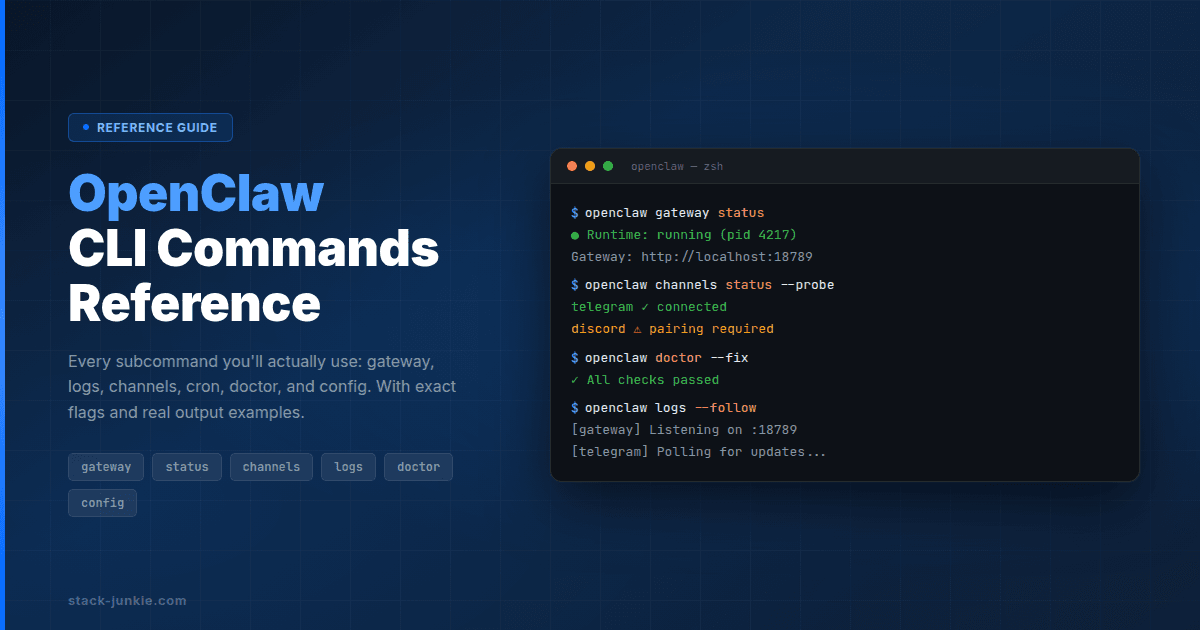
The OpenClaw CLI controls your gateway, channels, cron jobs, and configuration from the terminal. This reference covers every subcommand you'll actually use, with exact syntax, flags, and real output examples. Bookmark it. You'll come back here every time you forget a flag or need to look up what a command returns.
Here's what this page gives you:
- Quick reference table of all commands
- Exact syntax and flags for each command group
- Real output examples where they're helpful
- Gotchas that aren't obvious from
--help
OpenClaw CLI Command List
The CLI organizes into command groups, each handling a different part of your setup. Here's the full list with the commands you'll reach for most often marked with a star.
| Command | What it does |
|---|---|
openclaw gateway ⭐ | Start, stop, restart the gateway daemon |
openclaw gateway run | Run gateway in the foreground |
openclaw gateway health | Quick health check |
openclaw gateway status | Detailed gateway status |
openclaw gateway install | Install as system service |
openclaw status ⭐ | Show channel and session diagnostics |
openclaw logs ⭐ | Tail gateway log files |
openclaw channels list | List configured channels |
openclaw channels status ⭐ | Check channel health |
openclaw channels capabilities | Show what a channel supports |
openclaw channels resolve | Resolve channel targets |
openclaw channels logs | View channel-specific logs |
openclaw channels add | Add a new channel |
openclaw channels remove | Remove a channel |
openclaw cron list ⭐ | List scheduled jobs |
openclaw cron status | Show cron system status |
openclaw cron add | Create a new cron job |
openclaw cron edit | Modify an existing job |
openclaw cron rm | Delete a job |
openclaw cron enable | Enable a disabled job |
openclaw cron disable | Disable a job without deleting |
openclaw cron runs | View run history |
openclaw cron run | Trigger a job manually |
openclaw doctor ⭐ | Run health checks and auto-fixes |
openclaw pairing list | List pending pairing requests |
openclaw pairing approve | Approve a device pairing |
openclaw config get | Read a config value |
openclaw config set | Write a config value |
openclaw config unset | Remove a config value |
Global flags that work with any command:
| Flag | Effect |
|---|---|
--dev | Use dev configuration and workspace |
--profile <name> | Use a named config profile |
--no-color | Disable ANSI color output |
--json | Machine-readable JSON output |
-V, --version | Print version |
openclaw gateway: Start, Stop, and Restart
The openclaw gateway command starts, stops, and manages the daemon process that runs everything. You'll use gateway restart more than any other gateway subcommand, usually after config changes.
Starting the gateway
Run in the foreground (useful for debugging):
openclaw gateway runOr as a background service:
openclaw gateway startThe gateway requires gateway.mode=local in your config, or you can bypass that with --allow-unconfigured for a first run.
Service management
openclaw gateway install    # Install as system service
openclaw gateway uninstall  # Remove the system service
openclaw gateway start      # Start the service
openclaw gateway stop       # Stop the service
openclaw gateway restart    # Restart (apply config changes)
Send SIGUSR1 to the gateway process for an in-process restart without dropping the PID.
Gateway flags
| Flag | Default | What it does |
|---|---|---|
--port <number> | typically 18789 | Port to listen on |
--bind <mode> | loopback | Bind mode: loopback, lan, tailnet, auto, or a custom address |
--auth | - | Require authentication |
--token <value> | - | Set the auth token |
--password <value> | - | Set a password for auth |
--tailscale <mode> | off | Tailscale integration: off, serve, or funnel |
--force | - | Kill existing listener on the port |
--verbose | - | Verbose logging |
--dev | - | Use dev config and workspace |
--reset | - | Reset dev state |
Safety note: The gateway blocks binding beyond loopback without auth. If you're exposing it on a LAN or public IP, you need --auth with a token or password. This is intentional. Don't try to work around it.
For VPS hosting, see Best VPS for OpenClaw or the DigitalOcean setup guide.
Query subcommands
Check gateway health without restarting:
openclaw gateway health     # Quick health check
openclaw gateway status     # Detailed status info
openclaw gateway probe      # Connection probe
openclaw gateway discover   # Discover gateways on the network
These accept shared options: --url, --token, --password, --timeout, --expect-final, and --json.
openclaw status: Channel and Session Diagnostics
openclaw status gives you a dashboard view of your channels, sessions, and gateway health. It's the first command to run when something feels off. If you're migrating from the old Clawdbot/Moltbot names, this is the same CLI, just rebranded.
| Flag | What it does |
|---|---|
--all | Show all details including per-agent session stores |
--deep | Run live probes against each channel (WhatsApp, Telegram, Discord, Google Chat, Slack, Signal) |
--usage | Show resource usage stats |
# Quick check
openclaw status

# Full diagnostics with live channel probes
openclaw status --deep

# Everything, including multi-agent session stores
openclaw status --all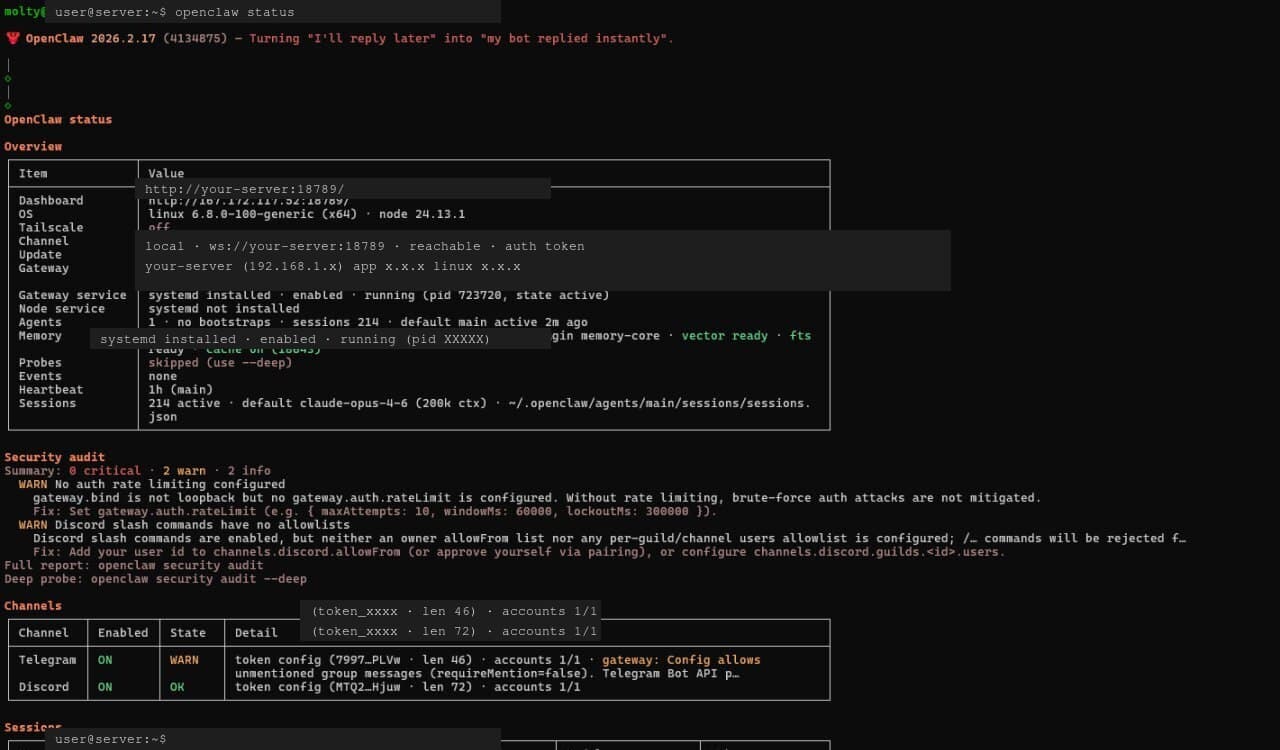
The --deep flag takes a few seconds because it sends live probes to each channel. Worth the wait when you're debugging a silent channel.
The output also shows your update channel and git SHA, and hints to run openclaw update if a newer version is available.
openclaw logs: Tailing and Filtering Logs
openclaw logs tails the gateway's file logs over RPC. This means it works even when you're connected remotely, not just on the local machine.
| Flag | Default | What it does |
|---|---|---|
--follow | - | Stream logs in real time |
--json | - | Output as JSON (for piping to jq) |
--limit <n> | 500 | Number of lines to show |
--local-time | - | Render timestamps in your local timezone |
# Last 500 lines
openclaw logs

# Follow in real time with local timestamps
openclaw logs --follow --local-time

# Pipe JSON logs to jq for filtering
openclaw logs --json | jq '.level == "error"'

# Last 50 lines only
openclaw logs --limit 50
openclaw channels: Status, List, Add, and Remove
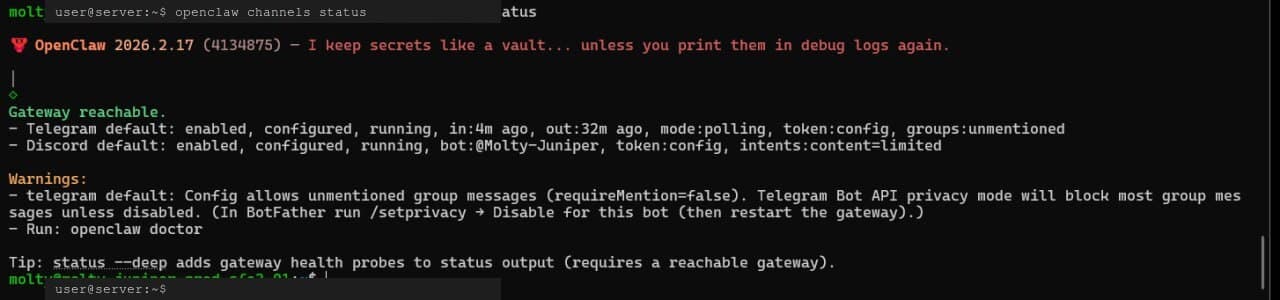
openclaw channels manages your messaging platform connections. The status subcommand is the one you'll use most. It tells you if a channel is actually connected and working.
openclaw cron: List, Add, Edit, and Disable Jobs
openclaw cron manages scheduled tasks from the command line. You can create, edit, enable, disable, and manually trigger jobs. For a deeper walkthrough of cron job design, see the cron jobs automation guide.
Cron subcommands
# System status
openclaw cron status

# List all jobs
openclaw cron list

# Create a job
openclaw cron add

# Edit a job
openclaw cron edit <job-id>

# Delete a job
openclaw cron rm <job-id>

# Enable/disable without deleting
openclaw cron enable <job-id>
openclaw cron disable <job-id>

# View run history
openclaw cron runs

# Trigger a job right now
openclaw cron run <job-id>
Delivery options
By default, isolated cron add jobs use --announce delivery. To keep output internal:
openclaw cron add --no-deliverEdit delivery settings on existing jobs:
# Set announce delivery to a specific Telegram chat
openclaw cron edit <job-id> --announce --channel telegram --to "123456789"

# Disable delivery entirely
openclaw cron edit <job-id> --no-deliver
Retry behavior
Failed jobs use exponential backoff: 30 seconds, then 1 minute, 5 minutes, 15 minutes, and finally 60 minutes between retries.
One-shot jobs
Jobs created with --at delete themselves after a successful run. If you want to keep the job around after it fires, add --keep-after-run.
Config knobs
| Setting | Default | What it does |
|---|---|---|
cron.sessionRetention | 24h | How long to keep cron session data |
cron.runLog.maxBytes | - | Max size of the run log |
cron.runLog.keepLines | - | Minimum lines to keep when truncating |
openclaw doctor: Health Checks and Auto-Fix
openclaw doctor runs health checks and can auto-fix common configuration problems. It's the first thing to try when something isn't working right.
openclaw pairing: Approve and List Device Requests
openclaw pairing handles device authentication to your gateway. Two subcommands: list and approve.
# List pending pairing requests
openclaw pairing list telegram

# With explicit channel and account
openclaw pairing list --channel telegram --account work

# Approve a pairing code
openclaw pairing approve telegram <code>

# With explicit flags
openclaw pairing approve --channel telegram --account work --notify <code>
If you've only got one pairing-capable channel configured, you can skip the channel name:
openclaw pairing approve <code>For a deeper look at how pairing works, see OpenClaw Pairing Explained.
openclaw config: Get, Set, and Unset Values
openclaw config reads and writes your gateway configuration. Three subcommands: get, set, and unset.
# Read a value (dot notation)
openclaw config get agents.defaults.workspace

# Read with bracket notation (arrays)
openclaw config get agents.list[0].id

# Set a value (parsed as JSON5)
openclaw config set gateway.port 19001

# Set with strict JSON parsing
openclaw config set gateway.port 19001 --strict-json

# Remove a value
openclaw config unset some.old.key
Values are parsed as JSON5 by default, which means you can write true instead of "true" and skip quoting simple strings. Use --strict-json when you need exact type control.
Remember to restart the gateway after changing config values:
openclaw config set gateway.port 19001
openclaw gateway restart
Key Terms
- Gateway: The daemon process that runs OpenClaw and manages all connections
- Channel: A messaging platform connection (Telegram, Discord, Slack, Signal, etc.)
- Pairing: Device authentication that links a client to your gateway
- Cron job: A scheduled task that runs on a timer inside the gateway
FAQ
How do I restart the OpenClaw gateway?
Run openclaw gateway restart. If you need to apply config changes, this is the command. For a full stop and start, use openclaw gateway stop followed by openclaw gateway start.
How do I check if my channels are working?
Run openclaw status --deep. The --deep flag sends live probes to each connected channel and reports their actual health, not just whether they're configured.
How do I follow logs in real time?
Run openclaw logs --follow. Add --local-time to see timestamps in your timezone instead of UTC. Add --json if you want to pipe the output to jq for filtering.
How do I fix configuration issues automatically?
Run openclaw doctor --fix. It creates a backup at ~/.openclaw/openclaw.json.bak before making changes. Add --non-interactive to skip confirmation prompts.
Where does OpenClaw store its config?
The config file lives at ~/.openclaw/openclaw.json. Use openclaw config get to read values and openclaw config set to write them. Don't edit the file directly unless you know what you're doing.
Evidence and Methodology
All command syntax, flags, and behavior in this reference come from the official OpenClaw CLI documentation. Output examples are based on actual CLI usage. This page consolidates information spread across separate doc pages into one scannable reference.
Related Resources
- OpenClaw Cron Jobs Automation Guide for in-depth cron job design
- OpenClaw Troubleshooting Universal for error codes and fixes
- Fix OpenClaw Gateway Pairing Required for pairing issues
- OpenClaw Pairing Explained for how pairing works
- Best VPS for OpenClaw for hosting recommendations
- OpenClaw Power User Workflows Guide for advanced usage patterns
Changelog
- 2026-03-01: Initial publication
Comments
No comments yet. Be the first.